Quick answer
What should you check before a bedtime headphone session?
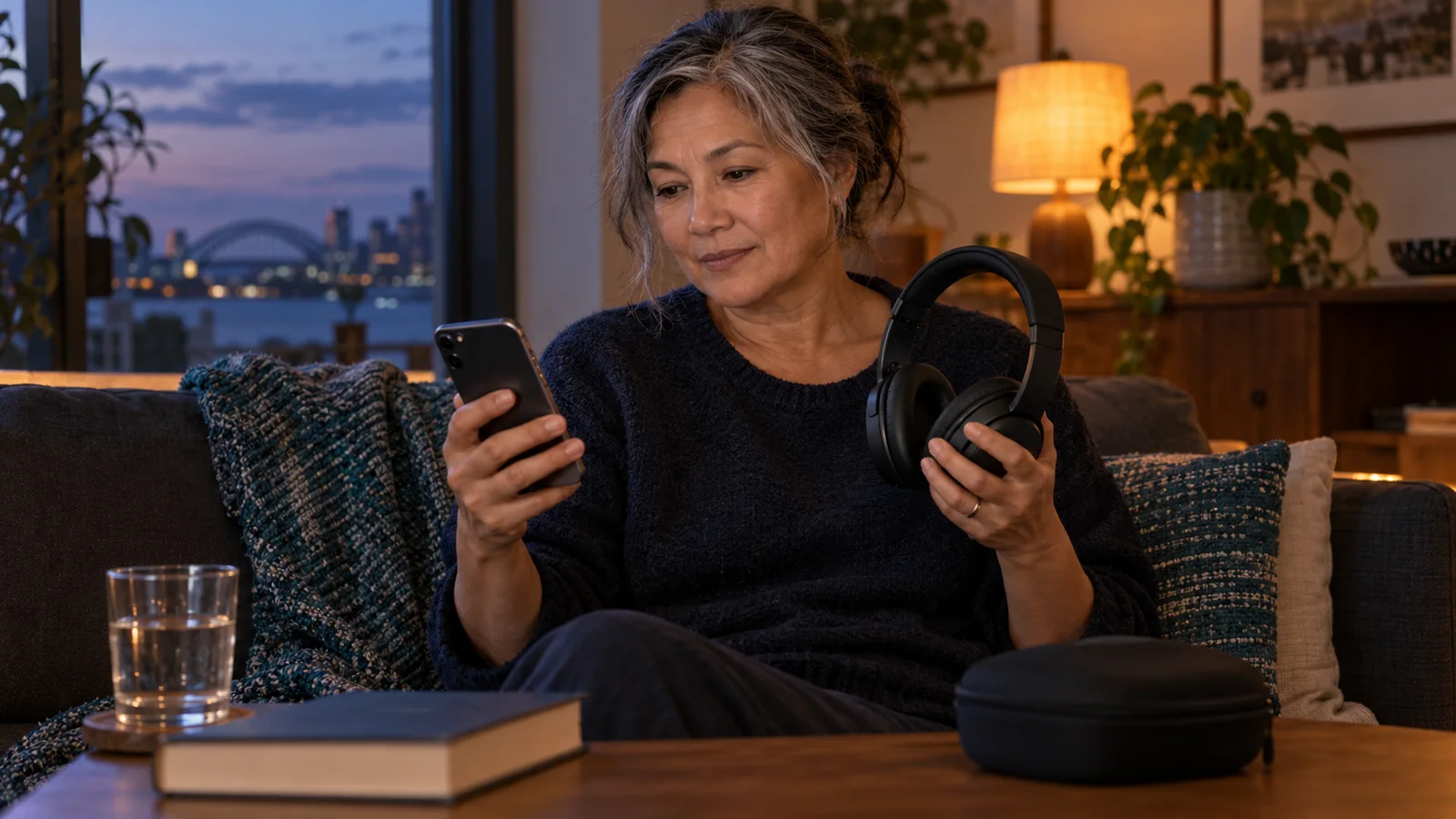
Confirm the audio route, start quietly, review iPhone Headphone Safety, consider the rest of today's listening and decide how the session will end. These checks make the setup clearer; they do not establish that audio—or Tihna—will improve your sleep.
Six checks before play
- Connect the stereo headphones you intend to use.
- Find Headphone Safety and review Reduce Loud Audio.
- Check the headphone level while audio plays.
- Consider cumulative listening, not just this session.
- Know the session length and intended endpoint.
- Keep pause and stopping simple.
You have already chosen what to listen to. Before starting, check where the audio will play, how loud it is and when you intend to finish. This checklist is for an adult using stereo headphones for a defined session before bed—not overnight headphone-use guidance and not an insomnia treatment.
1. Connect your headphones before starting
Connect the pair you intend to use and confirm that your iPhone is sending audio to them. Begin quietly so an unexpected output or volume setting is easy to notice.
For Tihna, use stereo headphones and follow the listening-route check shown before playback. That check concerns the audio setup; it does not measure your hearing, prove a neurological response or predict a sleep result. If the output is unexpected, pause and resolve it rather than turning everything up.
2. Find Headphone Safety
On iPhone, open Settings → Sounds & Haptics → Headphone Safety. Turn on Reduce Loud Audio and review the selected limit. Apple says this feature analyses headphone audio and reduces sound above the level you set.
Treat the limit as a protective control, not a volume target. Start with a low, comfortable listening level and keep headphone notifications enabled where available. The selected limit is not a recommended listening level.
3. Check the level while your chosen audio plays
The Hearing control in Control Centre can display headphone audio levels during playback. If it is missing, add the Hearing control from Control Centre's controls. For exposure history, open Health → Browse → Hearing → Headphone Audio Levels.
Apple notes that measurements are most accurate with Apple or Beats headphones; other headphones may rely on estimates based on iPhone volume. Use the information as guidance, not a guarantee. Check the setup, make any necessary adjustment and put the screen aside rather than turning the session into constant monitoring.
4. Consider today's listening, not just this session
A short session does not make a high volume harmless. Hearing risk depends on sound level, duration and how often exposure occurs—including listening earlier in the day.
The World Health Organization recommends keeping volume down, using well-fitted headphones, taking breaks from loud sound and choosing devices with exposure monitoring or limiting. If listening feels uncomfortable, stop rather than trying to complete a planned duration. Persistent ringing or hearing difficulty warrants professional advice.
5. Decide how the session ends
Before pressing play, review the duration shown in your chosen app and decide when you will stop and remove your headphones. Do not assume every audio app stops playback, prevents repeats or handles interruptions in the same way.
Tihna's current Sleep programme uses 20-minute sessions. That describes the session length, not a deadline for falling asleep. Follow the controls shown in your current app version and check that playback has stopped when you finish.
6. Keep stopping simple
Settle somewhere safe before listening. Avoid a session when you need to monitor traffic, machinery, another person or an important sound around you. Keep the pause control accessible, and stop if the audio or headphones become irritating.
Afterwards, one practical question is enough: Was this comfortable and easy to finish? You do not need to grade your sleep or increase the volume because you did not feel a particular effect.
What this checklist can—and cannot—tell you
These steps help you check equipment and set boundaries around listening. They cannot establish that a particular sound or app treats insomnia.
A Cochrane review found moderate-certainty evidence that recorded music improved self-reported sleep quality in adults with sleep difficulties. It did not test Tihna, binaural beats or Tihna's 20-minute Sleep programme. If sleep difficulties persist, speak with your GP. Australia's Sleep Health Foundation identifies cognitive behavioural therapy for insomnia, or CBT-I, as an established treatment approach.
Quick Calm is different from Sleep
The current Australian App Store listing says Tihna includes a five-minute Quick Calm session without a subscription. Quick Calm can help you inspect the general listening setup, but it is not a free Sleep session, a full-programme trial or evidence of a future sleep outcome. Check current access and purchase terms in the app.
Evidence, product proof and limits
- Apple — Check your headphone levels on iPhone — reviewed 15 October 2026 for Headphone Safety, live monitoring, history and measurement limits.
- WHO safe-listening guidance — reviewed 15 October 2026 for the relationship between sound level, duration and frequency of exposure. It does not set an individual guaranteed-safe level.
- Cochrane review of music for insomnia in adults — indirect general evidence; it did not test Tihna or this checklist.
- Sleep Health Foundation — Insomnia — reviewed 15 October 2026 for general Australian care guidance and CBT-I.
- Tihna bedtime listening page and Australian App Store listing — direct product evidence for stereo-headphone setup, current session descriptions and Quick Calm. These are not independent efficacy evidence.
Review Tihna's 20-minute bedtime setup
See the current stereo-headphone routine, sound choices and honest distinction between Quick Calm and the Sleep programme.
See the bedtime setup →Disclosure: this article is published by Tihna. Tihna is a wellness listening app, not a medical treatment. Follow the safety guidance and eligibility warnings shown in the current app.